How We Made Sure Files Don’t Get Corrupted Even If the App Shuts Down Mid-Save
What happens to your document if your laptop shuts down at the moment you save? In mori, the answer is “either before the save or after the save—one of the two.”
What happens if the power goes out at the moment you save a file?
Normally, a file can end up only half-saved. That should not happen in an editor meant to be used for a long time. So mori protects the original file even if saving fails.
First, it creates a temporary file in the same folder as the document. After writing all the content, it flushes it to disk and copies the permissions of the original file. Once everything is ready, it renames the temporary file to the original name.
Renaming happens all at once. Even if the power goes out midway, what remains is either the old file or the new file. A half-saved file does not remain.
The permissions also stay the same. Saving is about changing the content, not changing who can read the file.
It does not alter the document’s bytes either. CRLF line endings, BOMs, mixed line endings, and even the presence or absence of a final line ending are preserved exactly. If you open a file and change nothing, saving it again should not alter a single byte. mori tests this principle with every release.
Links Stay Intact
Even a safe saving method cannot be applied to every file in exactly the same way.
Replacing a symbolic link as though it were a regular file makes the link disappear. The edited content is not reflected in the document the link pointed to, either. mori follows the link and saves the actual file. The link remains intact.
Hard links let multiple names point to the same file. If only one name is replaced with a new file, that connection is broken. So files with hard links are overwritten in place. This gives up atomicity, but reduces the risk with a backup created immediately before saving.
Files That Cannot Be Read Are Not Saved
Before saving, mori reads the file on disk first.
If the file does not exist, it creates a new one. If it can be read, mori backs it up and then saves it. If the file exists but cannot be read, saving stops.
This includes old documents with unsupported encodings, folders, and files without sufficient permissions. If an unreadable file were shown as an empty document and then overwritten, even the content the user could not see could disappear entirely.
If a file cannot be read, a backup cannot be created either. That is why not saving is the only way to protect the file.
Backups and Drafts Are Not Created Next to Documents
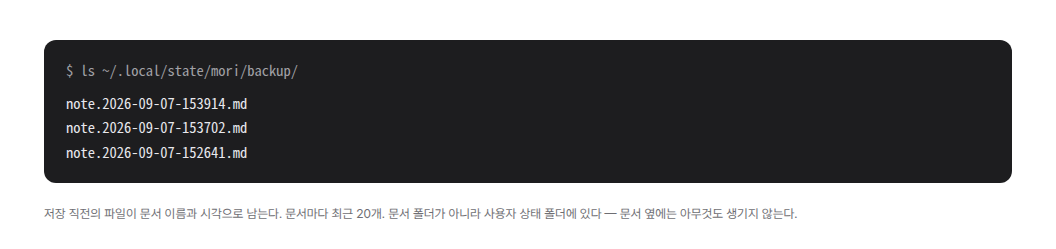
The file as it existed before saving is backed up in the state folder. Its name contains the document name and the time it was saved.
문서이름.2026-09-07-153914.md
The 20 most recent backups are kept for each document, with the oldest deleted first. You can tell when a backup was created just by looking at its filename, and open it directly in your usual editor.
A document that has never been saved has no original to back up. Instead, mori creates a draft. One second after editing stops, it saves a copy in the state folder. The name contains the time and the document’s first heading.
The draft is deleted when the file is saved or when the user discards the document. The same happens when the app exits. If there is a location to save to, the document is saved as a file; otherwise, it remains as a draft.
Temporary files left behind by a crash are also cleaned up the next time the document is opened. However, mori leaves them alone if the process that created the file is still running. Another window may be in the middle of saving.
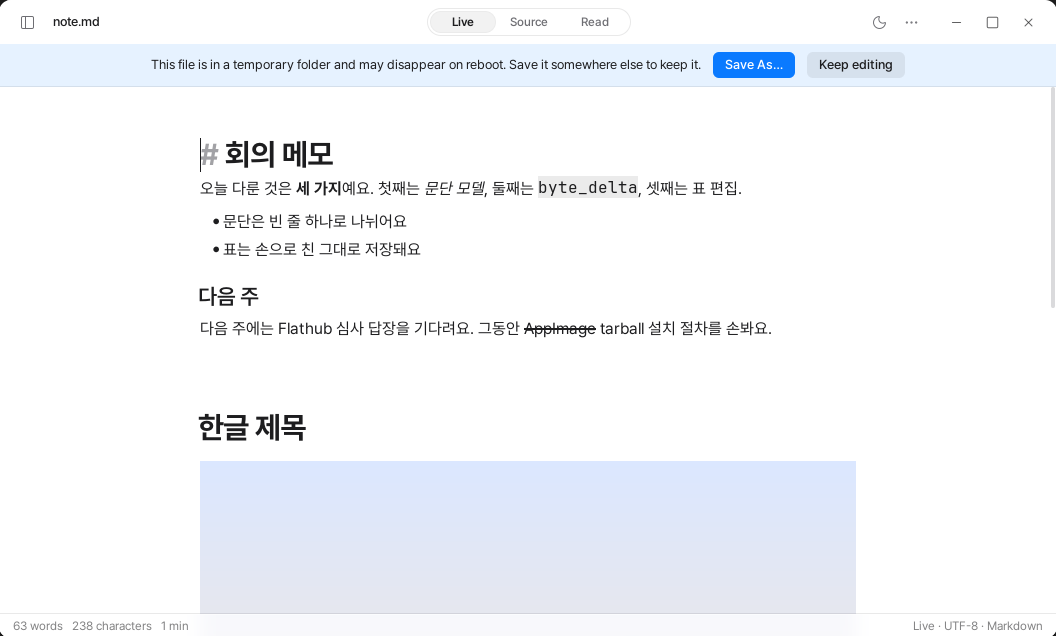
Documents in /tmp or a cache folder may disappear when the computer restarts. When you open one of these documents, mori displays a notice telling you to save it somewhere else.
Other than that, no auxiliary files are created in the document folder. Settings, backups, drafts, and information about the last opened files are all stored in the state folder under the user’s home directory. Features that would require separately storing state that cannot be contained in Markdown were not added.
Backups are needed when Undo cannot take you back. For example, after reopening the app, or when you realize much later that you saved something incorrectly. Opening a backup file lets you see the document exactly as it was immediately before each save overwrote it.
Files and the Network Are Touched Only with the User’s Permission
Auto-save must be enabled directly in Settings. You can also choose how long it waits before saving.
When enabled, it saves after the configured amount of time has passed since editing stopped. The saving method is the same as when you save manually. It first creates a backup, then creates a temporary file and swaps it with the original file. Auto-save is not a separate saving feature; it is a timer that starts the same save operation on your behalf. It works only when you edit.
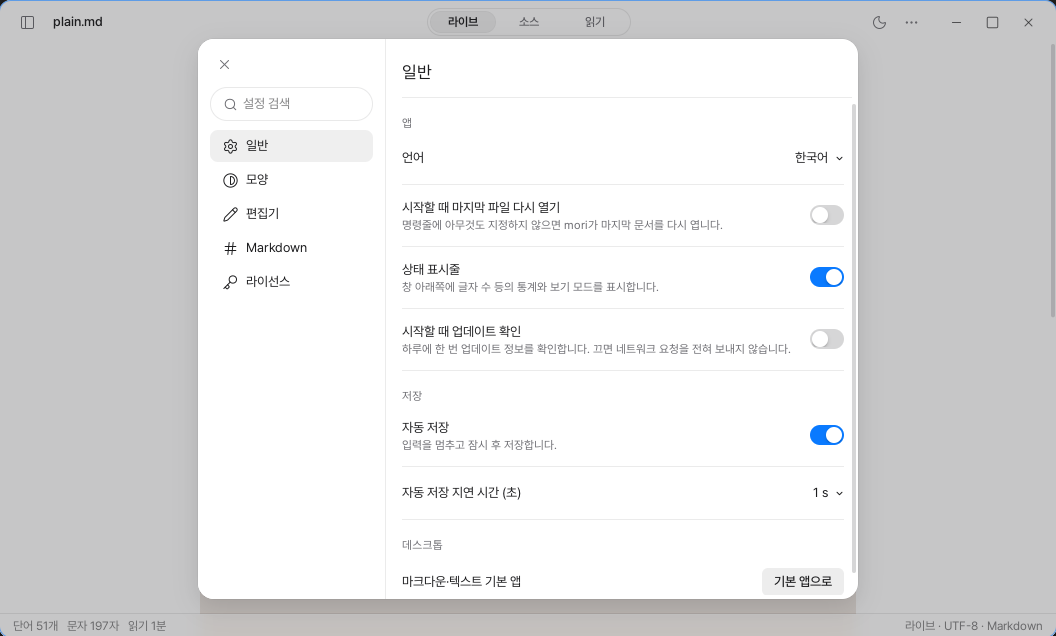
Update checking must also be enabled directly. When it is turned off, mori does not use the network.
When enabled, it checks once in the background after the app starts. “Once a day” is enforced not by the app keeping track of time, but by a stamp file in the state folder. It does not check again while the app remains open, and there is no continuously running timer.
Even when a new version is available, it is not downloaded immediately. mori only displays a notification in the bottom-right corner of the screen. Nothing is downloaded, installed, or restarted until the user clicks it.
AppImage is the only format the app can update directly. That is because replacing a single file is all it takes. If mori was installed through apt or Flatpak, it only shows the appropriate command. The user runs it themselves.
When checking for updates, mori sends only the platform and distribution channel. It does not send information that identifies the user or information about open documents.
Safe saving does not mean saving that always succeeds. It means saving that does not lose anything even when it fails.